Navigation anchor
TxDOT.gov product library
How to use this component
Select the Navigation Anchor component when you need to provide direct links to specific sections within a single webpage.
A Navigation Anchor component enables users to jump directly to specific sections on a page using clickable links.
Navigation Anchors are ideal for single-page content like FAQs, long articles, and documentation. Users click on these links to go directly to the section identified by an anchor ID.
Nav Anchor states: default and hover


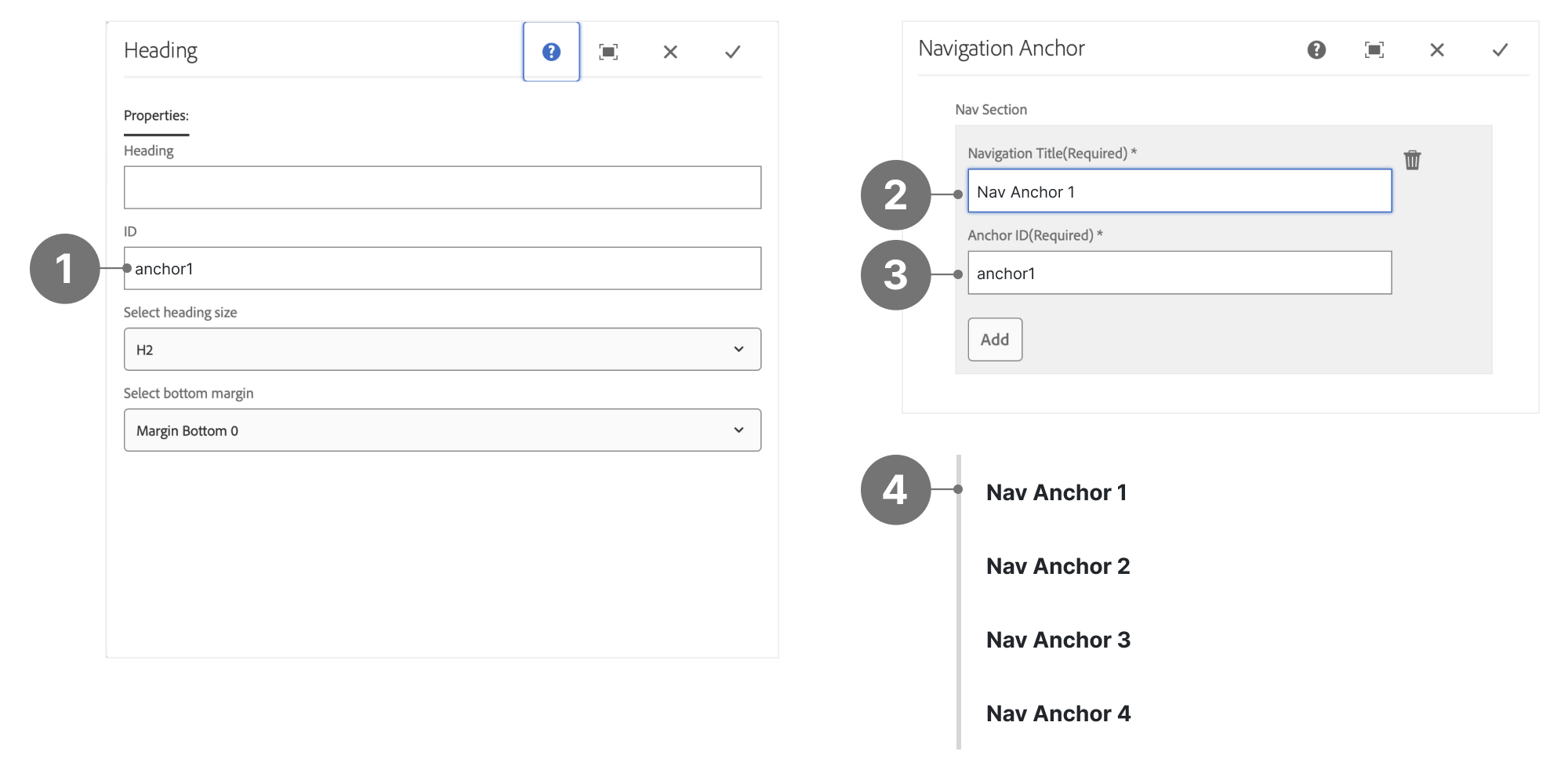
Nav Anchor anatomy
- ID: the name you want to use, which is only found on supported components.
- Navigation Title: The text that will appear as a link in the Nav Anchor component.
- Anchor ID: Both the ID and Anchor ID must match.
- Anchor Nav component example: If a User clicks on the Nav Anchor link, the page will jump directly to the linked ID (1).
Best practices
- Assign clear and easy-to-remember anchor ID values before adding the Navigation Anchor component.
- Ensure the Navigation Title is descriptive and matches the title of its destination.
- Double-check that the anchor ID matches exactly, including case sensitivity, to ensure the link works properly.
- Use lowercase and hyphens to separate words when creating IDs.
- Do not use generic or non-descriptive anchor IDs.
- Avoid placing Navigation Anchor links randomly; maintain a consistent placement for visual coherence.
- Do not create multiple IDs with the same name, ensure each ID is unique.
Note:
- Anchor links must be manually updated if content sections are added or removed.
- Use a side navigation component to link to sibling pages or external pages.
Placement
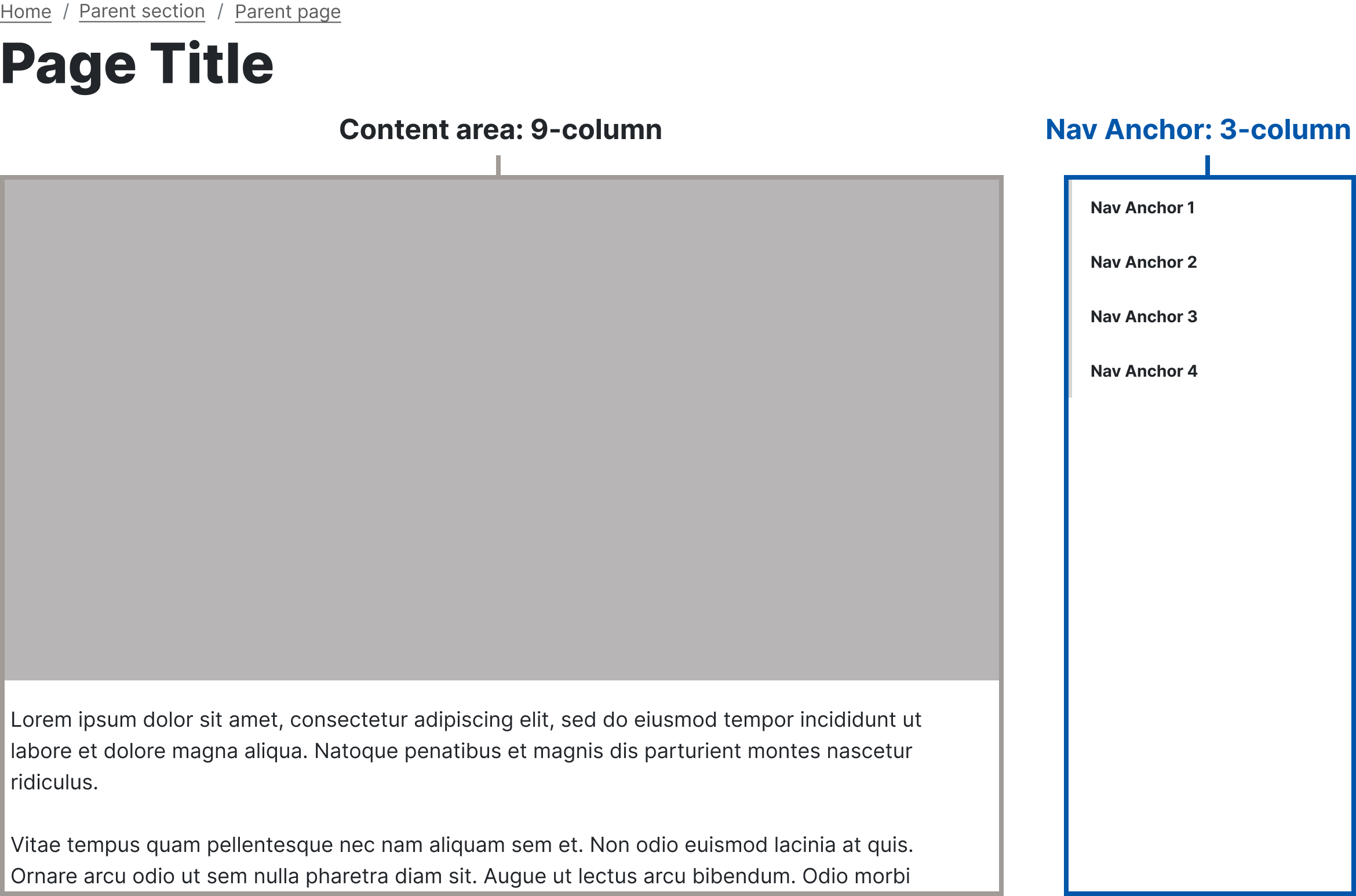
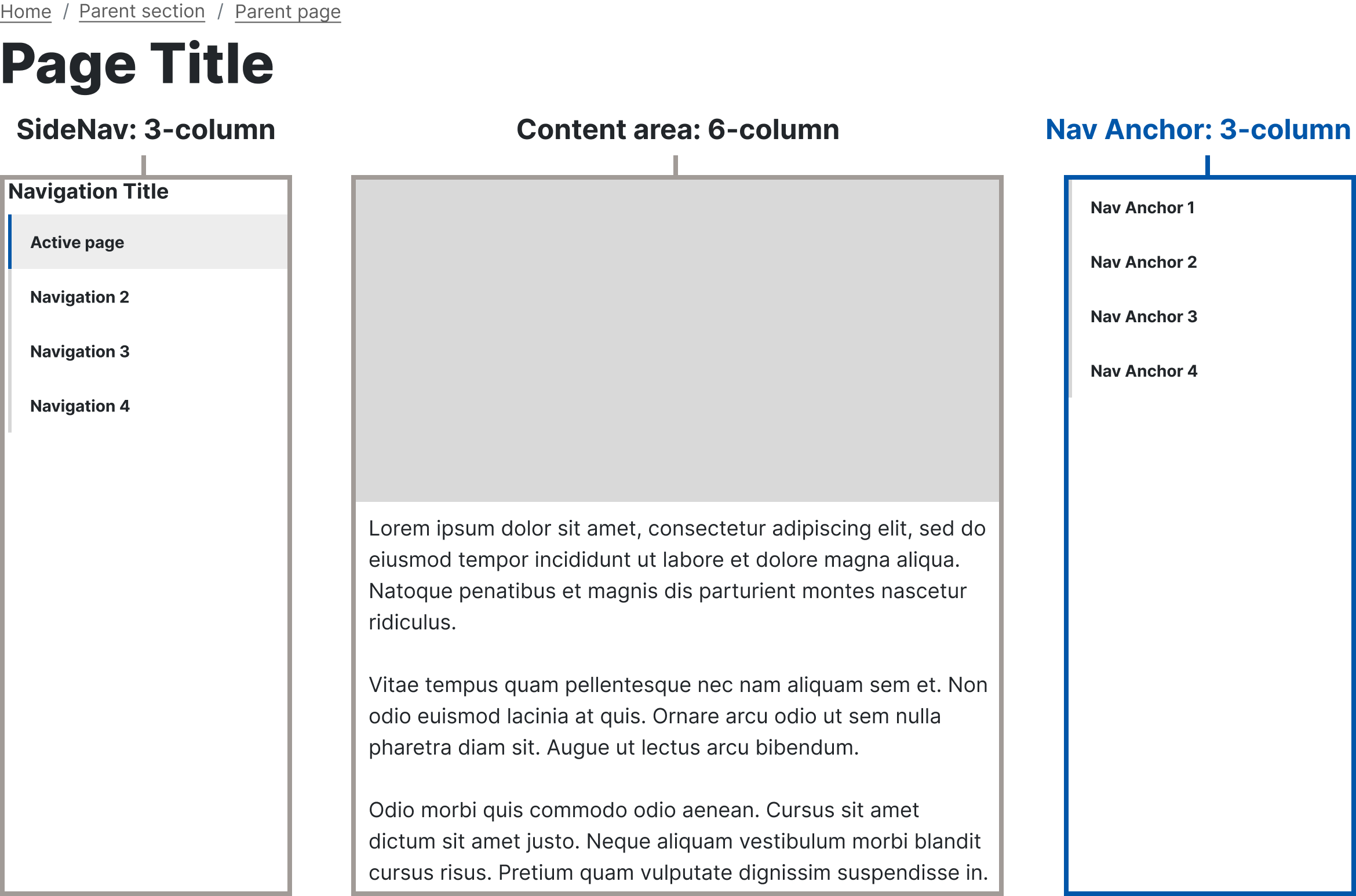
Navigation Anchors are usually placed in the right rail of a Column Control component. Use layouts like 9-3 or 3-6-3 for visual consistency.
Supported components
Accessibility guidelines
- Ensure all anchor IDs are unique and descriptive to help screen readers navigate the page.
- Use clear, concise titles that accurately describe the destination content.
- Test the navigation links with assistive technologies to confirm functionality.
Web Coordinator checklist
- Assign anchor IDs:
Ensure each section to be linked has a unique and descriptive ID attribute. - Add Navigation Anchor component:
Place the component in the right column of a Column Control. - Enter Navigation Title and Anchor ID:
Input a clear and descriptive title.
Match the anchor ID with the corresponding section’s id attribute. - Double-check IDs:
Confirm that the entered anchor IDs are correct and case-sensitive. - Verify component compatibility:
Ensure the selected component includes an ID field (e.g., Heading, Featured Content, Table). - Test functionality:
Test the anchor links to ensure they navigate to the correct sections.